Features
Everything TuckGem does.
Four things, done carefully: back up, read and find, keep watch, and keep your data on your own PC.
Back up
Pick chats, press Start.
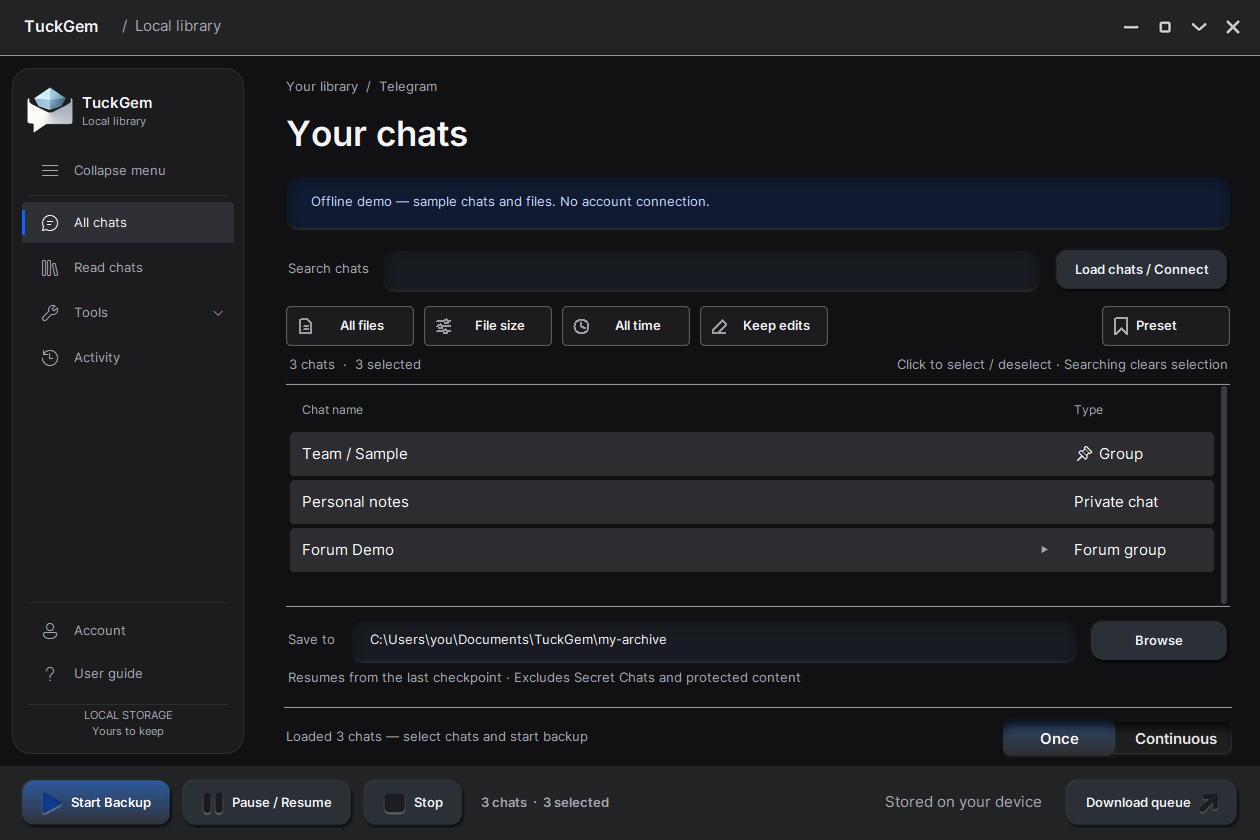
- Choose several chats at once — groups, channels, forum groups and private chats — and search the list by name.
- Set it once. Seven file types (photos, videos, GIFs, audio and music, voice messages, documents, stickers), a maximum file size and a date range. Save the choice as a preset.
- Press Start. A backup resumes from its last checkpoint. The download queue lets you put a file first or cancel it.
- Plain folders you can open. Each chat gets its own folder with a readable page and its files sorted by type — no special program needed to look inside.
Read & find
A library, not a pile of files.
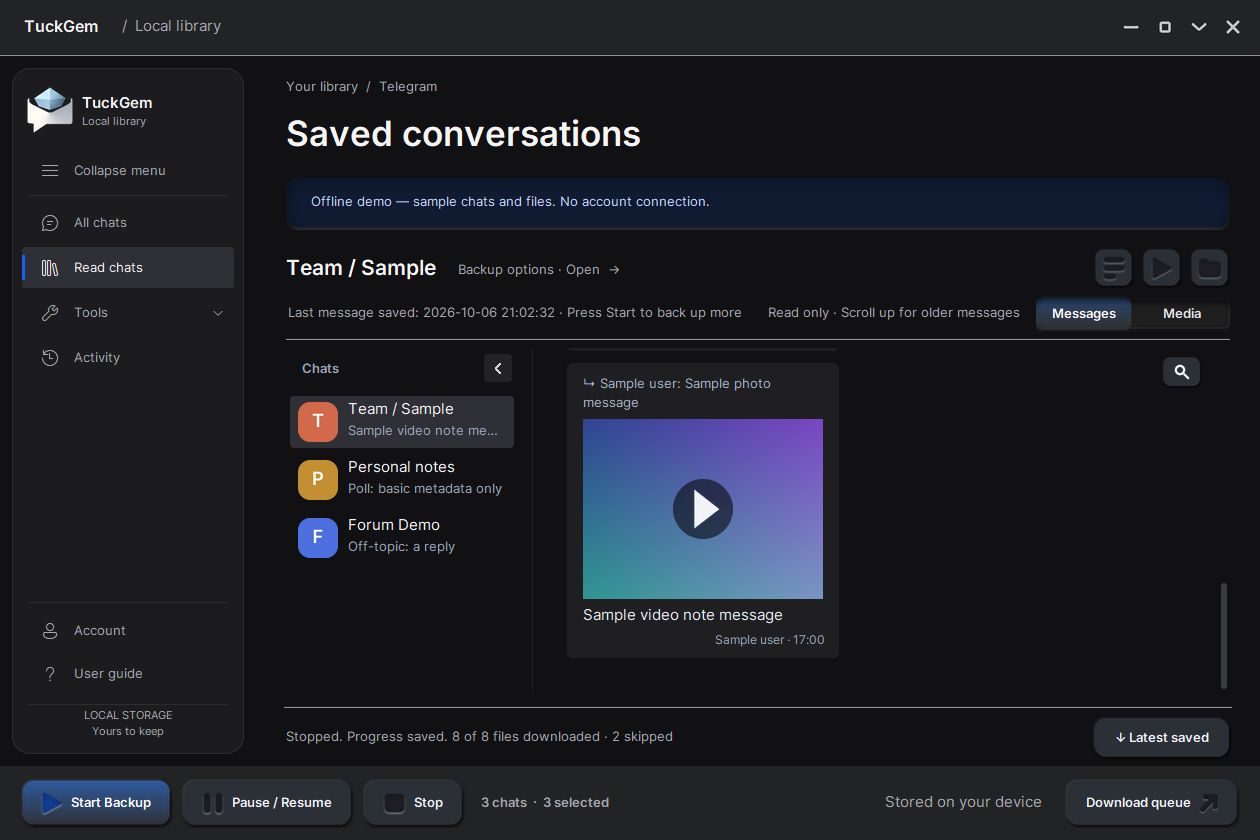
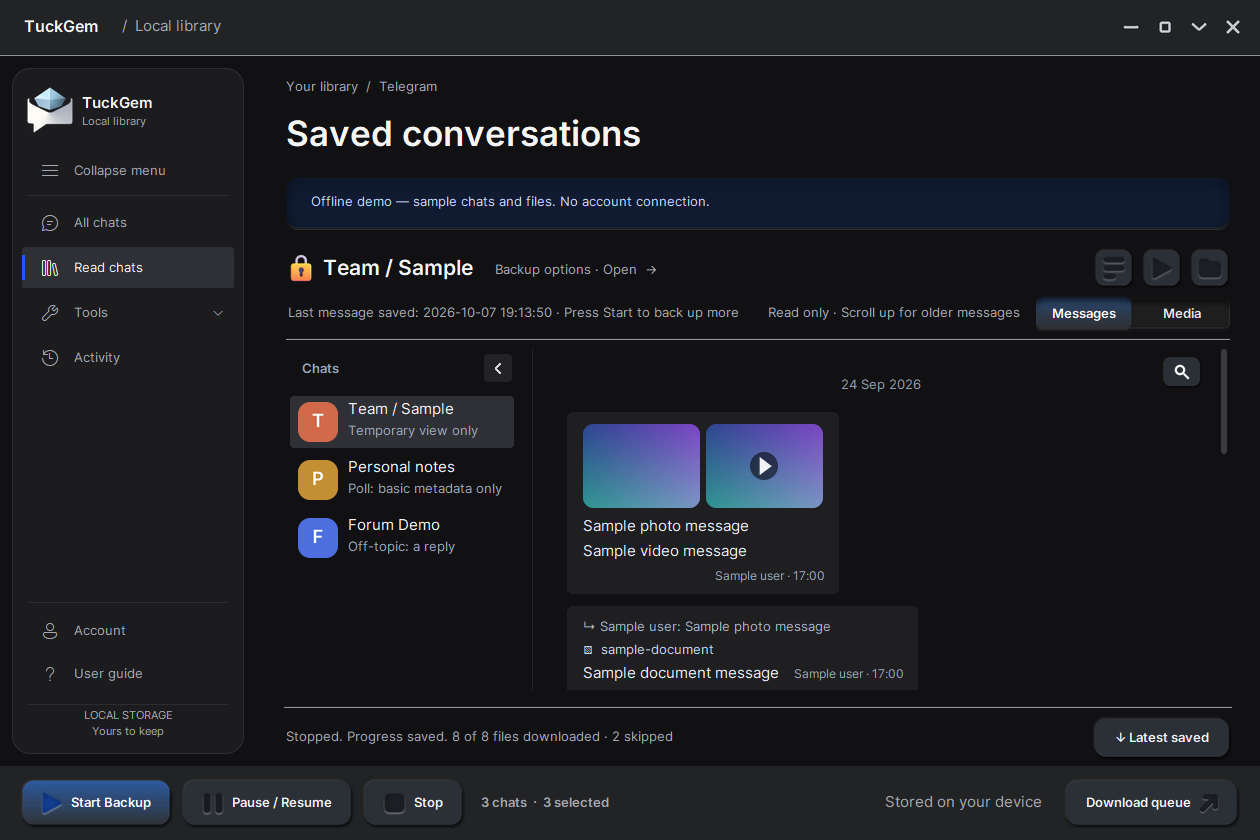
- The reader. Saved chats scroll like a normal chat, with replies, photos and videos in place. Load Text (Preview) shows a chat’s latest messages before you back it up.
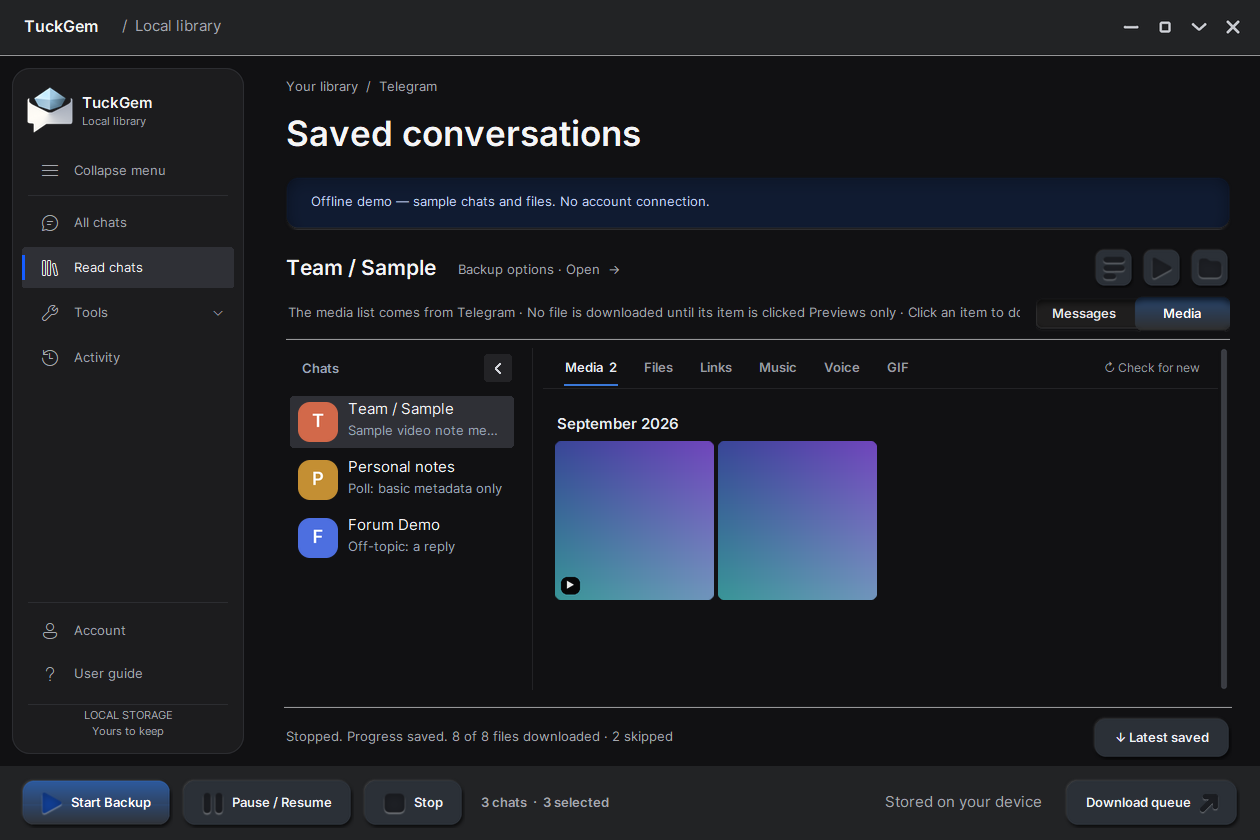
- The Media page. Switch from Messages to Media to browse a chat’s media, files, links, music, voice and GIFs, grouped by month — without scrolling the chat. Previews come first; a full file downloads when you click it. It works inside a forum group’s topics.
- Search. Find a chat by name, or press Ctrl+F in the reader to search the open chat or all saved chats.
Keep watch
Let it follow the chats that matter.
- Auto follows chosen chats while TuckGem is open — press Start once and new messages are saved as they arrive. (Auto plan.)
- Hide to tray keeps TuckGem running in the Windows system tray, out of your way.
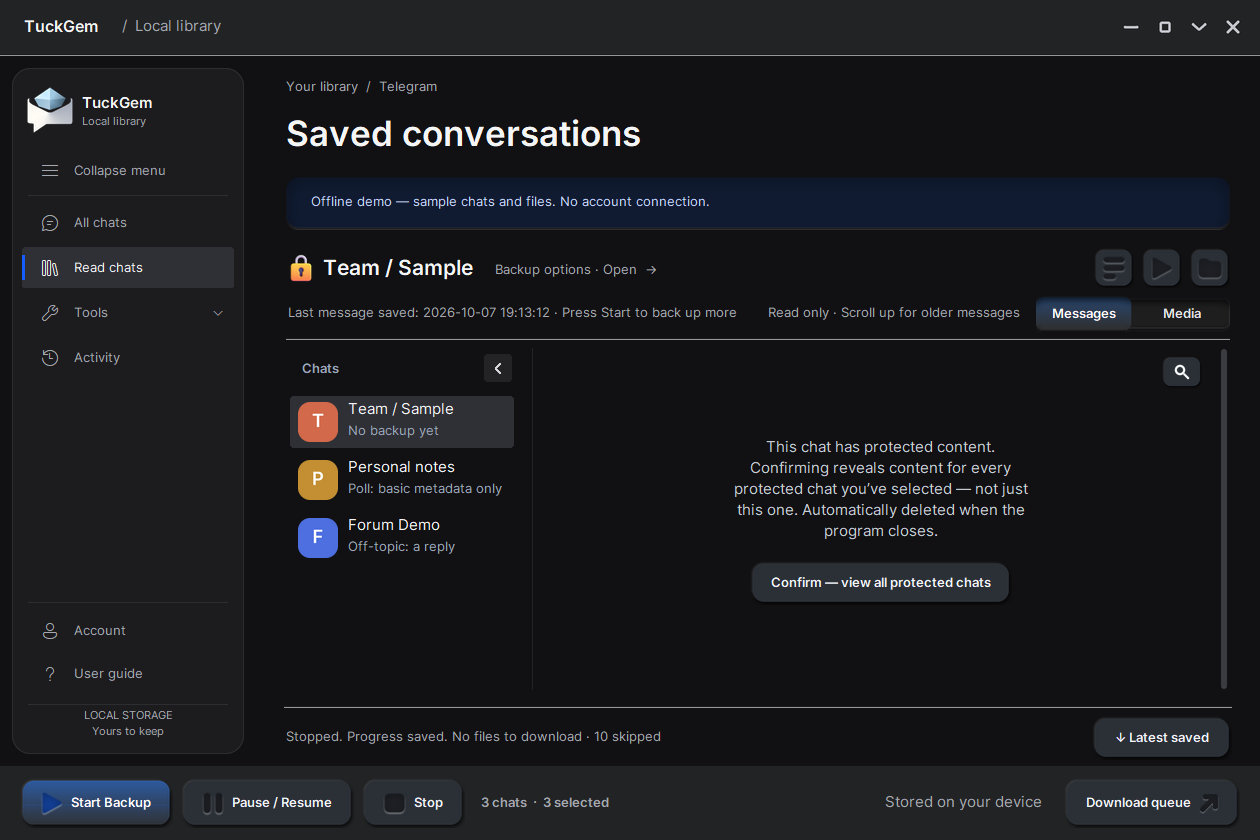
- Protected chats can still be read. Chats whose owner turned on Telegram’s “Restrict saving content” open in the reader after one confirmation and show normally — messages, photos and videos. That view lasts while TuckGem is open: it is never saved, and it is deleted when TuckGem closes.
Your data stays yours
From Telegram straight to your PC.
- Nothing through our servers. TuckGem connects to Telegram from your computer, with your own account, and saves into a folder you choose. Your messages and files never reach us.
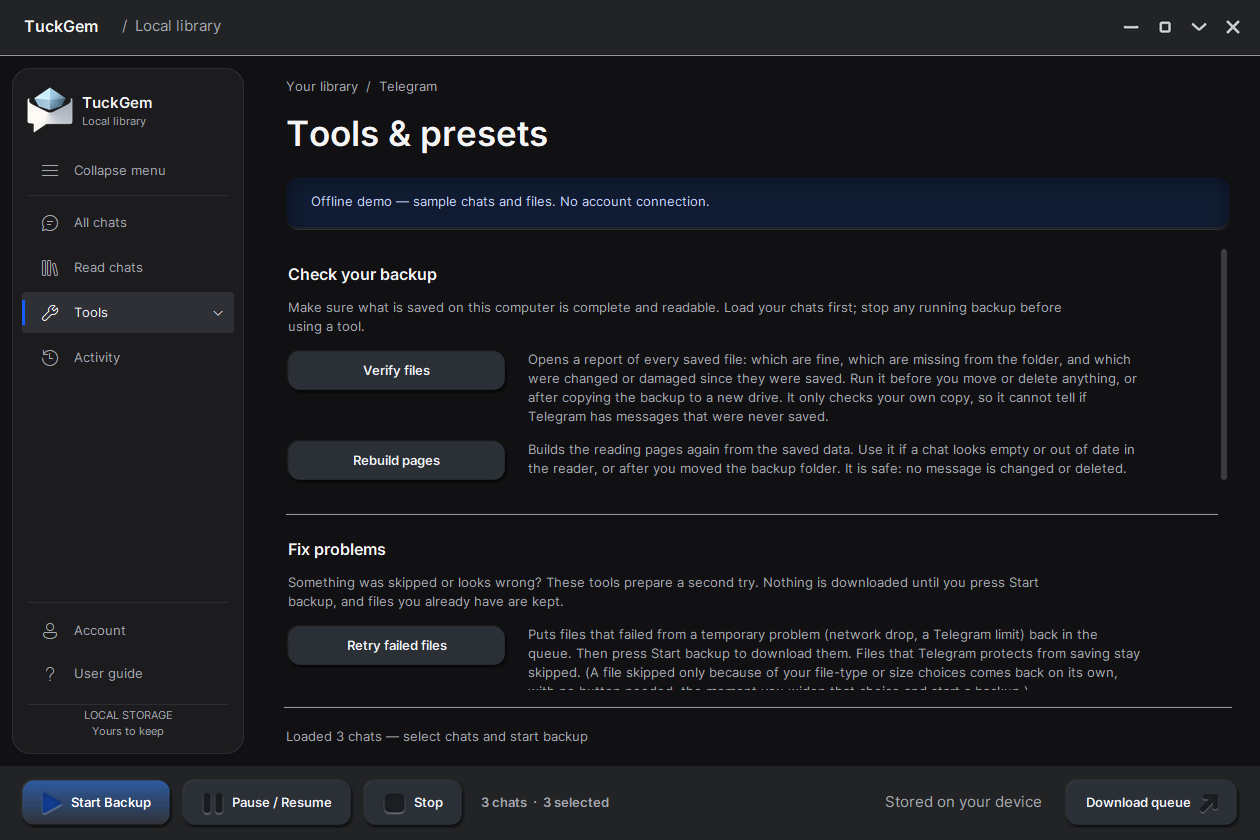
- Check and keep it healthy. Verify files, rebuild the reading pages, retry failed files, or export a chat as a single plain file.
- Your licence key is verified on your computer. No ads, no analytics trackers. Privacy Policy